


300 Ways to Ask the Four Questions includes a CD and full-featured DVD. On this page we'll explain the contents of the disks, how to use them on various operating systems, and how to get out of trouble spots.
TroubleshootingHaving a problem with the DVD on an old Windows machine? Look no further – help is here!
Windows & Mac Users To use the DVD on all Microsoft and Apple systems, your guidance is here!
Contents The CD contains 44 tracks – recording highlights specially selected from our hundreds of Four Questions translations (interesting ancient languages, fascinating living languages, funny parodies) – 2 language quizzes – samples of 4 African click languages – samples of 5 foreign chants for the Four Questions. Voices on the CD - full track list Voices on the CD - full track list
The DVD contains all that and much more: videos of 4 Sign Language translations – over 390 recordings of the Four Questions in foreign languages; more than 16 authentic chants from native speakers around the world; foreign versions of Kiddish, Dayenu and other seder songs and prayers; Rap and Reggae versions; music, throat singing, continuous breathing, tongue twisters – culture stories – 4 written and audio quizzes – and cutouts to "sign" the Four Questions in Hebrew Semaphore!
DVD does not autostart on my Windows computer
I get a "Server busy" message
Internet Explorer warns me that it has "restricted this file from showing active content"
I get a "Wrong volume is in drive" message
How do I switch from the videos back to main screen?
DVD does not autostart on my Apple computer
How do I switch from the videos back to main screen?
I can't see everything on my DVD player
Only videos show on my DVD player
Your DVD player will only show the Sign Language Videos.
To see the computer content on the DVD, put the disk into a DVD-compatable
drive of a computer. If you are running Windows OS's or an Apple Mac,
click the links above for Usage Instructions on those operating systems.
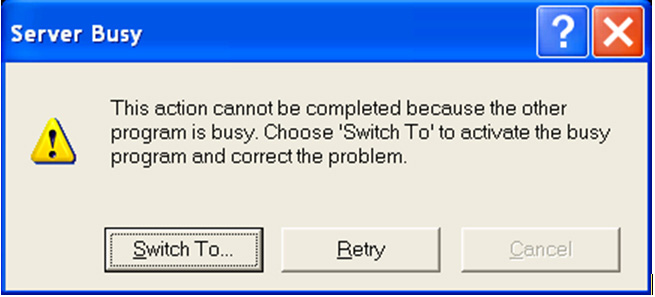
I get a "Server busy" message
If you get this message (see image below), click either "Switch to"
or "Retry". If you get the main video screen, just click the "PC Content"
button again.
Internet Explorer warns me that it has "restricted
this file from showing active content"
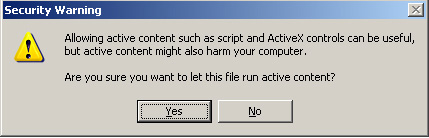
Internet Explorer provides this informational message when clicking some of
the links on the html pages. Take the following steps:
1) Click on the banner at the top of the page. (First image below)
2) Select "Allow Blocked Content" (Yes, really do this. There's no danger
for the items on this DVD.)
3) Click "YES" to "Are you sure you want to run active content?"
(Second image below)

I get a "Wrong volume is in drive" message
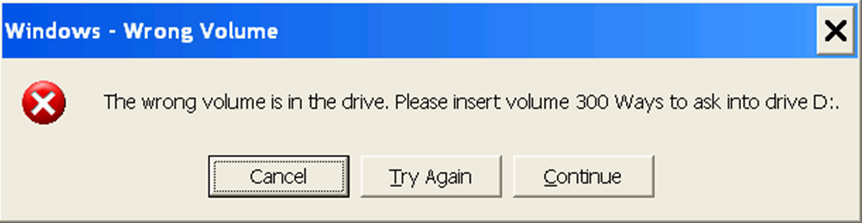
You removed the DVD before exiting the special player software.
Replace the DVD in the drive, then click "Try Again"
To exit the
DVD software correctly, click "Close" on the main screen (or hit
the escape key) and wait for the NetBlender screen to exit
before removing the DVD.
You should also close all browser windows with the DVD's html pages.
I get a "Wrong volume is in drive" message
You removed the DVD before exiting the special player software.
Replace the DVD in the drive, then click "Try Again"
To exit the
DVD software correctly, click "Close" on the main screen (or hit
the escape key) and wait for the NetBlender screen to exit
before removing the DVD.
You should also close all browser windows with the DVD's html pages.
How do I switch from the videos back to main screen?
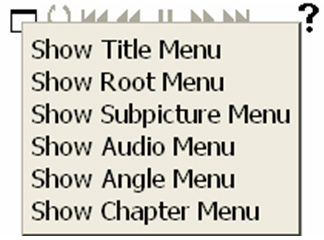
Move the mouse to bottom of the screen and click on the small box.
Selecting "Show Title Menu" will bring you back to the main screen.
DVD does not autostart on my Windows XP/NT computer
About a minute after inserting
the DVD, the special player should install and start – be patient.
(Once player is installed, the main screen will appear more quickly.)
If the player doesn't autostart after waiting enough time:
a) Are you certain your computer has a DVD drive – have you played
other DVDs on it?
b) Try playing the DVD on a computer with fewer programs loaded on it.
There are reports of other software packages interfering with the enhanced
DVD player – moving to a "cleaner" computer often helps.
Access the files and videos from the File Explorer
Go to the drive containing the DVD within the Windows File Explorer to access the videos
and PC content. Follow these instructions:
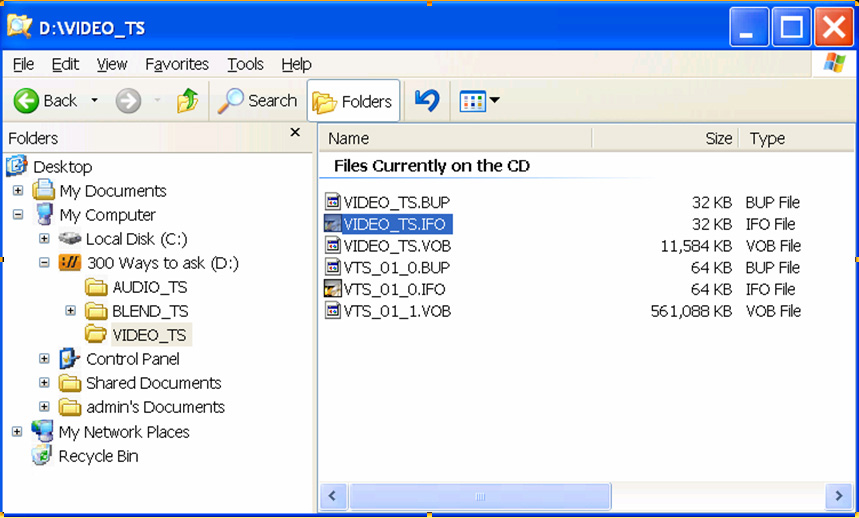
To play the videos:
In the Windows File Explorer, go to the "300 Ways to Ask" folder (the DVD's name),
open the "VIDEO_TS" folder, and double click on VIDEO_TS.IFO or
VTS_01_0.IFO. (See image below – your view of the Windows File
Explorer may be different.) If that doesn't work, drag and drop
either of those files into most any media player.
You can also start most any media player and open
the "VIDEO_TS" folder on the "300 Ways to Ask" DVD.
To play the PC content (html pages with recordings, chants,
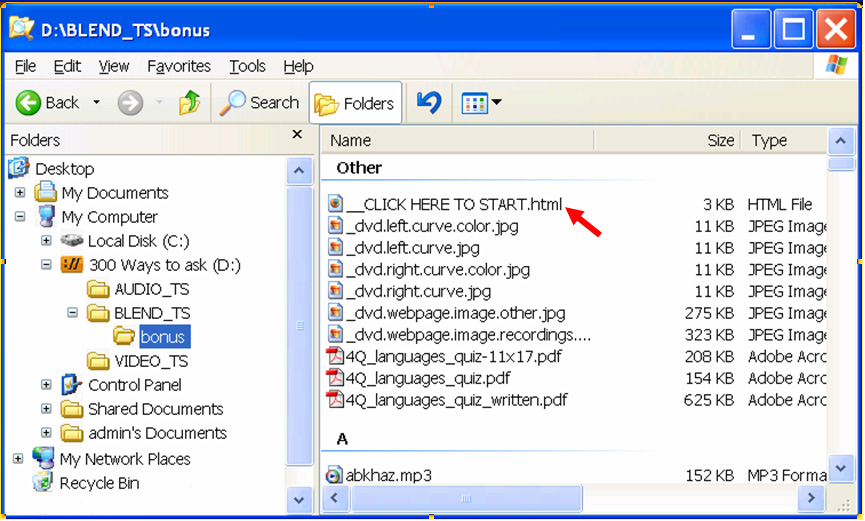
games, songs):
In the Windows File Explorer, go to the "300 Ways to Ask" folder (the DVD),
open the "BLEND_TS" folder, then the "bonus" folder, and double click
on "__CLICK HERE TO START.html" (See image below –
your view of the Windows File Explorer may be different.)
INSTRUCTIONS for Windows OSs and Apple Macs
NOTE: The DVD cannot autostart on Apple computers
How can I see the PC content (html pages)?
The special player software only runs on older Windows XP/NT computers, not
modern Windows or Macs.
However, your computer should recognize that the DVD contains videos and
automatically give you one or more options to play them.
(If your computer doesn't automatically give you the option, start a
video player and go to the VIDEO_TS directory on the DVD.)
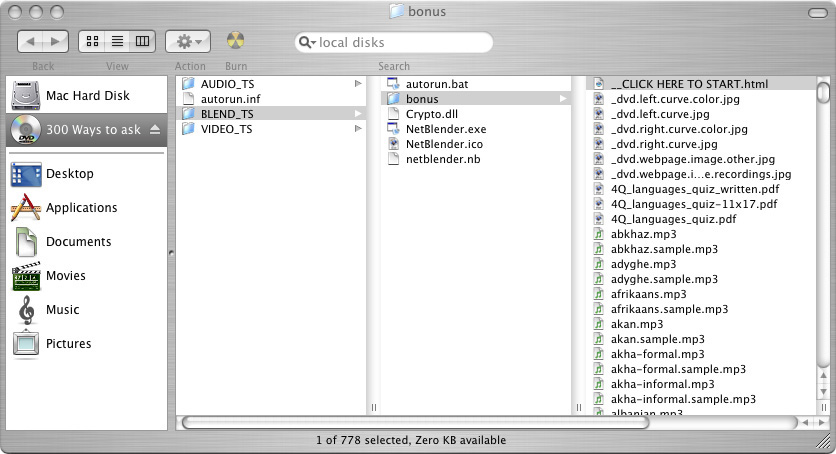
To see the html pages, go to the the "BLEND_TS" folder, then the "bonus" folder, and double click on "__CLICK HERE TO START.html" (See image below - your view of the Finder may be different.)
How do I switch from the videos back to main screen?
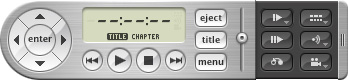
On your player, select the "Title" button to return to the main screen.
(Your player may look different from the image below.)
© Copyright Spiegel-Stein Publishing